Monday, October 12, 2009

Automatically delete items from the Deleted Items folder (Outlook)


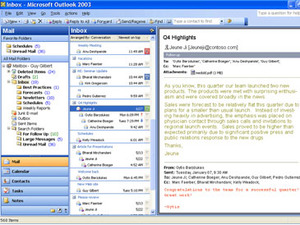
When you want to delete a message, you can either click on it and press the [Delete] key, click on it and drag it into the Deleted Items folder in the Folder List, right-click on it and select Delete from the shortcut menu, etc. Normally, you delete items because you don't need them and you don't want them taking up valuable space in Outlook. When you delete a message, it's sent to the Deleted Items folder, which by default isn't emptied automatically.


You can easily change this, though, so items in the Deleted Items folder are deleted for good when you exit Outlook. To do so, simply select Tools Options. Click on the Other tab, and then select the Empty The Deleted Items Folder Upon Exiting check box. Then, click OK. Now, every time you exit Outlook, the items in the Deleted Items folder are ancient history!

Thursday, October 1, 2009

Jump to it! Use the Document Map to get there fast (Microsoft Word)


Using Word's built-in styles does more than allow you to format your document attractively -- it also lets you use the Document Map to jump to any location in your document.

To reveal this useful navigation tool, select View Document Map from the main menu in any open document. On the left, you'll see a list of your main and sub headings; just click on one to jump to that location in your document instantly.

Monday, September 28, 2009

Know your limits (Outlook 2000/2002/2003)


Have you run into a situation where your Outlook mailbox is full and won't let you receive or create any new items? If this is the case, you may be over your storage limit.

In Outlook 2003, your PST file can hold tens of millions of items. If you're using Outlook 2000 or 2002, however, you're limited to 65,000 total items.

If you're running Outlook on Microsoft Exchange Server, no matter what version you're using, you're limited to the size allowed for your mailbox, which is determined by the system administrator

Thursday, August 27, 2009

Find all the cells in a worksheet to which you've applied data validation

If you need to add worksheets to an Excel file, chances are that you use the Insert | Worksheet menu command. There's a much faster way to go about this task: Simply press [Shift][F11] and Excel adds a new blank worksheet before the active worksheet.

If you need to add several worksheets to a workbook, you can use either technique to create all of the sheets at once. While holding down the [Shift] key, click on the same number of worksheet tabs as new sheets you want to create. Then, use either the menu command or shortcut key as you normally would.

Wednesday, August 26, 2009

Office 2010 coming to a computer near you early next year!

Instantly find all the fields in any document (MS Word)

Using fields in your documents is a convenient way to retrieve and update all kinds of information automatically. However, as handy as fields may be, they can be difficult to pinpoint when you need to edit them.

One way you can make fields stand out is to apply permanent onscreen shading. To do so, choose Tools Options from the menu bar (Edit Preferences in Word 2004), and then click on the View tab. In the Show panel, select Always from the field shading dropdown list, and then click OK.

In addition, you can easily locate fields by jumping to them. To jump forward from field to field, press [F11]. To jump backward from field to field, press [Shift][F11].

Need more Microsoft Word Help? Click here to find classes on any version of Word you need at New Horizons!

Tuesday, August 25, 2009

Add Power to your PowerPoint with essential eye contact!

When giving a presentation, never underestimate the importance of good eye contact. If an audience member asks you a question, turn to face them squarely to show that you're listening.

Keep this stance as you begin your reply, without staring directly into their eyes for more than five seconds. (If you need to, glance away momentarily and then regain eye contact--sustained staring can be intimidating.)

Above all, never look at a speaking member of the audience out of the corner of your eye. This can be construed as condescending and doesn't give the speaker the respect he or she deserves.

Also, check out these funny tips of what NOT to do during a presentation: